Import a script and turn it into usable show data.
Import a script file, review what BackstageOS detects, publish a version, and use the reviewed data to update script-connected production pages like Character Scene Breakdown.
Script import
Review workflow
Version history
Character breakdowns
Before you import
Start with the cleanest file you have. A well-structured PDF, Word document, RTF, or FDX file gives BackstageOS a better chance of recognizing pages, scenes, speakers, and production references correctly.
If the file is messy, still import it, but plan to spend time in review. The review step is not busywork. It is where the script becomes trustworthy show data rather than a blob of extracted text.
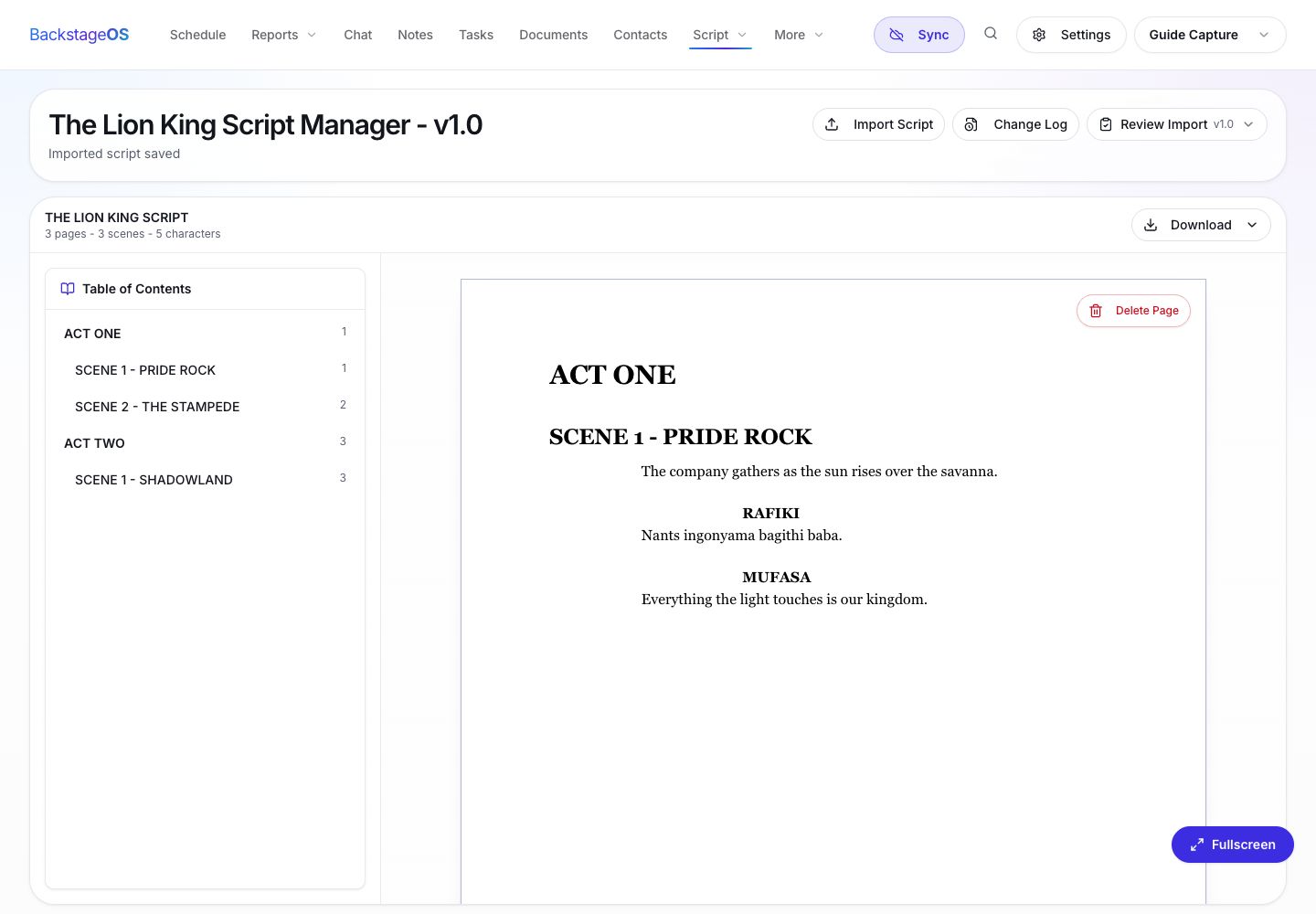
The Script page lets you import a file, inspect the script document, review detected production data, and manage version history.
Use the newest approved script file when possible.
Keep the original file name meaningful. BackstageOS can use it to help title the imported script.
Avoid importing a scan with no selectable text unless you have already run OCR.
If the production already has a script version, treat the import as a new version and review changes carefully.
Step-by-step: import the script
Open Script inside your show and choose Import Script. BackstageOS extracts text, builds a paginated script document, and prepares a review of scenes, characters, and production data.
After the file imports, do not rush straight to publish. The first pass tells you what BackstageOS found. Your review tells the show what is safe to use.
1. Open Script
Go to the Script page for the show.
2. Choose Import Script
Upload a supported file, such as PDF, Word, RTF, or FDX.
3. Wait for extraction
BackstageOS parses the file into a script document and prepares the import preview.
4. Read the import preview
Check page count, detected scenes, characters, and any change information against what you expected.
5. Open Review Import
Review detected production data before publishing a script version or updating connected production pages.
Review what the import found
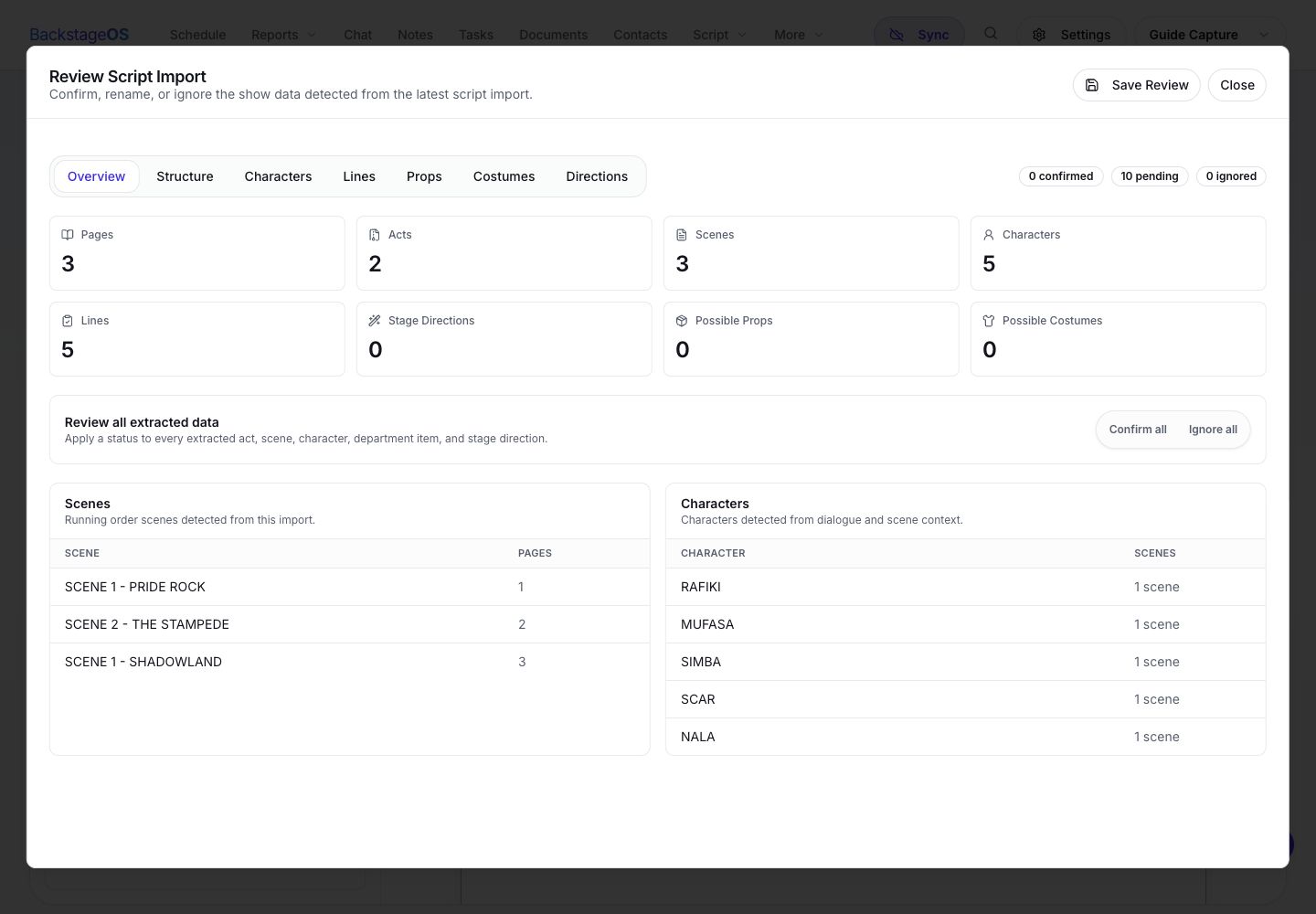
The review step is where you decide what to trust. Look at the scene structure, character list, line references, and proposed production targets. If the import found a character under the wrong spelling, fix the label before it becomes part of downstream paperwork.
This is also where you choose whether to update connected areas such as Running Order, Character Scene Breakdown, Props, or Costumes. Do not update everything just because the checkbox exists. Update the pages that the import genuinely supports.
Review extracted scenes, characters, and production data before saving the import review or publishing the script version.
1. Check detected scenes
Confirm act, scene, and page labels match the way your team talks about the script.
2. Check detected characters
Merge or rename labels that should refer to the same person or role.
3. Review production targets
Choose the areas that should receive data from this import, such as Character Scene Breakdown or Running Order.
4. Save review or publish
Save the review if you are not ready to publish. Publish a new version when the import is ready to become part of the show record.
Build or update Character Scene Breakdown
Once the import has reviewed script data, Character Scene Breakdown can use that structure to show characters against scenes or pages. This is where the import becomes something stage management can actually use in rehearsal, tracking, covers, blocking conversations, and entrance-exit work.
After applying the import, open Character Scene Breakdown and verify the grid. Check that major characters appear, scene columns make sense, and the presence marks line up with what the script actually says.
Check column labels before relying on the grid in rehearsal.
Assign or clean up characters if names were detected inconsistently.
Use version history when the breakdown is important enough to preserve.
If the generated grid is not right, use manual editing rather than pretending the import is perfect.
Versioning is the safety net
Scripts change. That is the whole reason the process needs versioning. When you publish a script version in BackstageOS, the show has a record of what was imported, reviewed, and used to update production pages.
That record matters later. It helps explain why a breakdown changed, which script version informed it, and whether a production page was updated from a script import or edited manually.
1. Publish a new script version
Use major versions for the first baseline or a substantial script shift. Use minor versions for smaller revisions when your show uses that convention.
2. Update connected pages intentionally
Apply the import to the production pages that should change, then open those pages and verify the result.
3. Preserve the review trail
Keep the import, review, and version tied together so the production record can explain itself later.
Import the file
Bring in a script file and let BackstageOS extract pages, scenes, characters, and production references.
Review the detection
Check what was found before it updates the show. Fix labels and choose which production areas should receive data.
Publish the version
Save the script as a versioned record, then update connected pages like Character Scene Breakdown when the review is ready.