Review the schedule, create a draft review when needed, choose recipients, include the right links, and publish the weekly schedule without turning the email into the source of truth.
Draft review
Publish workflow
Personal schedule links
Recipient preview
Start by deciding what kind of send this is
Not every schedule send should be treated the same. A draft review link is for getting alignment before the schedule is official. A published schedule is for communicating the working version to the company or a selected distribution list.
BackstageOS separates those moments so the team is not guessing whether a link is a draft, a current weekly schedule, or a personal schedule. That distinction is small until it saves you from a confusing thread.
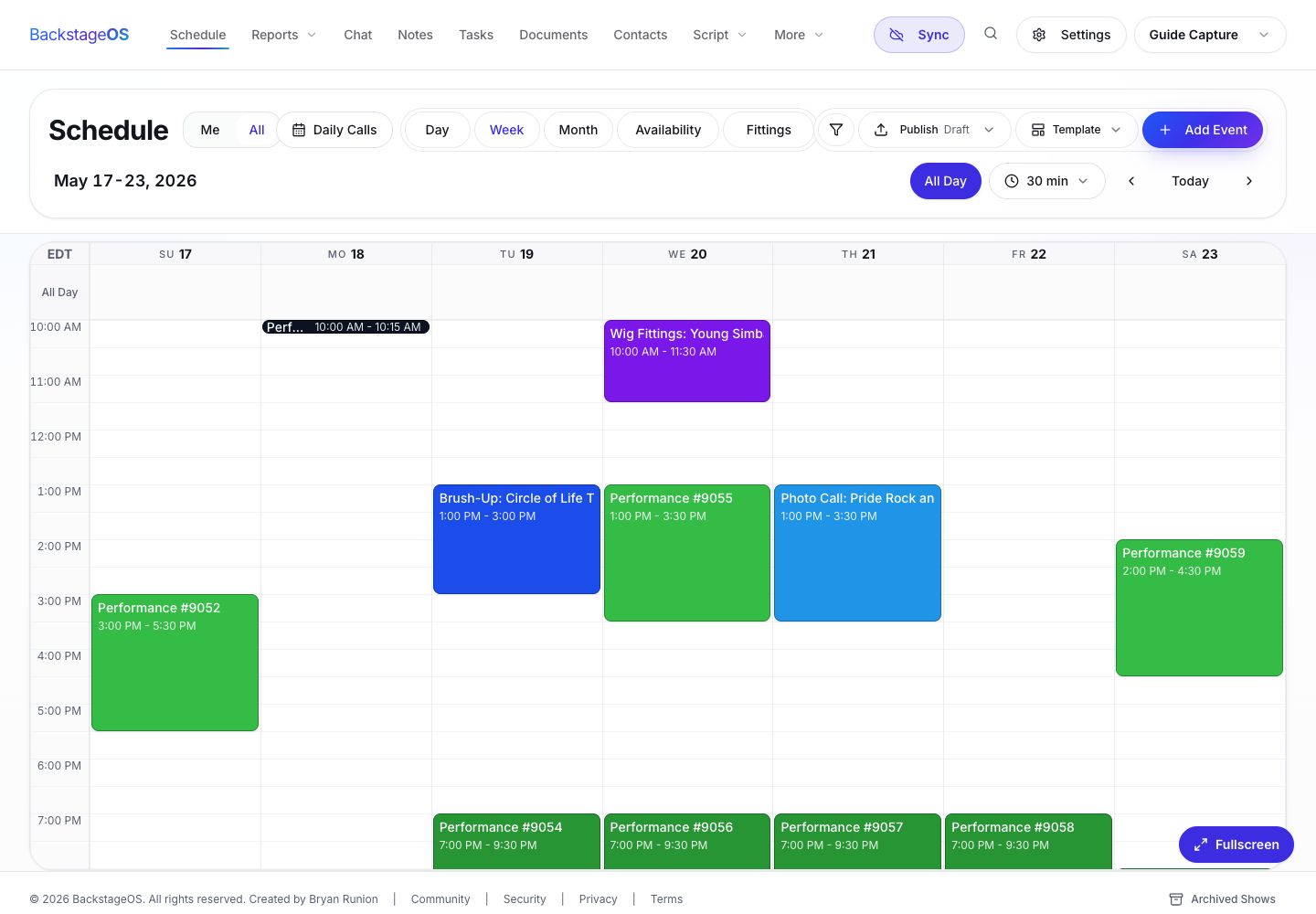
The schedule workspace shows the week, current publish status, draft controls, and personal schedule context before anything is sent.
Use draft review when production management, company management, or department heads need to review before the schedule is final.
Use publish when this version is ready for the people who will act on it.
Use resend when the schedule is already published and you need to send the current version again.
Step-by-step: publish the schedule
Before you open the publish dialog, look at the week with a slow eye. Check that all rehearsal blocks, fittings, meetings, meal breaks, and room holds have the right time, location, participants, and notes.
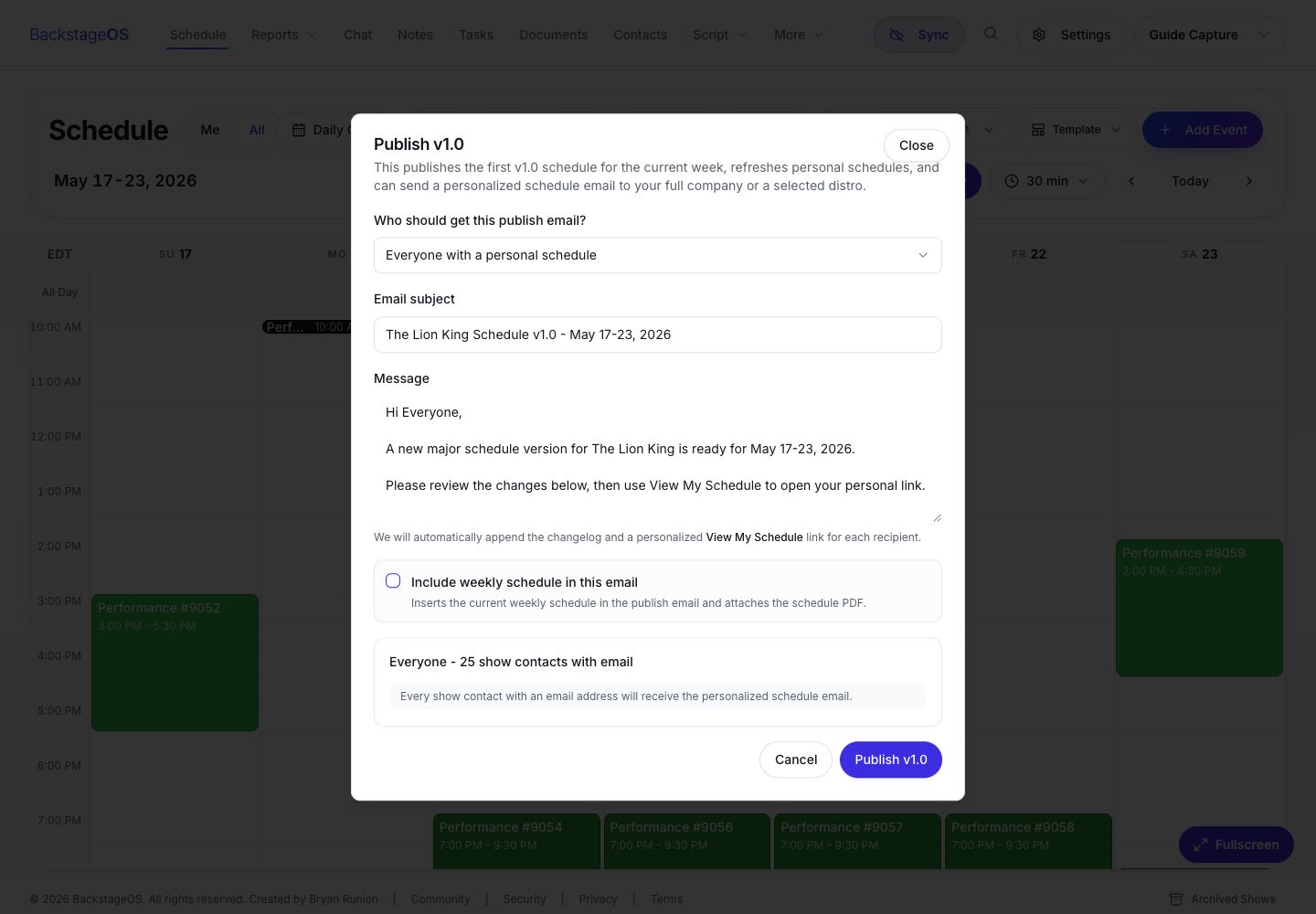
Then open the publish workflow. The dialog is where you decide who receives the schedule, what message goes with it, and whether to include a weekly schedule PDF.
1. Review the visible week
Confirm the schedule range, event details, fittings, rooms, and any recently changed blocks.
2. Choose draft review or publish
Create a draft review link if the schedule needs approval. Choose publish when it is ready to become the current schedule.
3. Select recipients
Choose everyone with a personal schedule or pick a distribution list if this send should go to a narrower group.
4. Write the subject and message
Use the message to call out important changes, not to duplicate the entire schedule.
5. Confirm and send
Review the recipient preview, include the weekly PDF if useful, then publish and send.
Use the publish dialog like a final check
The publish dialog is not just an email form. It is the last place to confirm the audience, the link type, the subject, the message, the weekly schedule attachment, and the recipient preview before the schedule leaves BackstageOS.
This is especially helpful when a show has different groups: cast, covers, musicians, creative team, production, wardrobe, and management. The right distribution list keeps the update useful instead of noisy.
Use the publish dialog to choose recipients, write a clear note, include a weekly schedule PDF when helpful, and confirm who will receive personal schedule links.
The subject should make the version and week obvious.
The message should name the changes people are most likely to miss.
The recipient preview should match the audience you intend to reach.
The weekly PDF is useful when people need a printable view, but the link should remain the living source.
What to write in the schedule message
The message should not rewrite the schedule. If the email becomes the source of truth, you have created a second schedule. Use the message to orient people to what matters and let the schedule link carry the actual details.
A strong message is short, specific, and calm. It names the week, flags major changes, tells people where to look, and avoids apologizing for every moving piece.
1. Name the range
Example: Attached is the weekly schedule for May 19 through May 24.
2. Flag important changes
Example: Please note the Wednesday room change and the added wig fitting for Young Simba.
3. Point people to their link
Example: Use your personal schedule link for the calls that apply to you.
4. Keep questions routed
Example: Please send conflicts or questions to stage management by noon tomorrow.
After publishing, verify the result
The work is not finished when the button says sent. Check that the schedule version is marked as published, the email went to the intended audience, and the personal schedule links are available for the people who need them.
BackstageOS is designed to keep the schedule, publish state, links, and change summary in the same workflow. That means the weekly email does not have to carry the whole burden of truth by itself.
Confirm the current published version matches the week you meant to send.
Spot-check one or two personal schedules for people with complex calls.
Save a short note if a late change needs to be explained later.
If a correction is needed, update the schedule first, then publish or resend from BackstageOS.
Review the week
Check the full schedule before sending anything: events, rooms, people, conflicts, and changes since the last version.
Choose draft or live
Use draft review when the schedule still needs eyes. Publish when it is ready to become the working version.
Send useful context
Recipients should receive the schedule, the change summary, and the right personal or review link.