Create a fitting request, choose the people and timing rules, send it for review, place it on the schedule, and confirm what changed without losing the thread.
Fitting requests
Wardrobe workflow
Review dialog
Schedule placement
What the fitting request workflow is for
A fitting request is not just a calendar event with a costume word in the title. It usually begins with a department need, moves through stage-management review, and ends as a scheduled appointment that affects a person, a room, and the rest of the day.
BackstageOS treats that path as a workflow. A request can start as a draft, move to pending review, be adjusted or split, then become schedule data. That matters because wardrobe may know what is needed, while stage management may know what the day can actually hold.
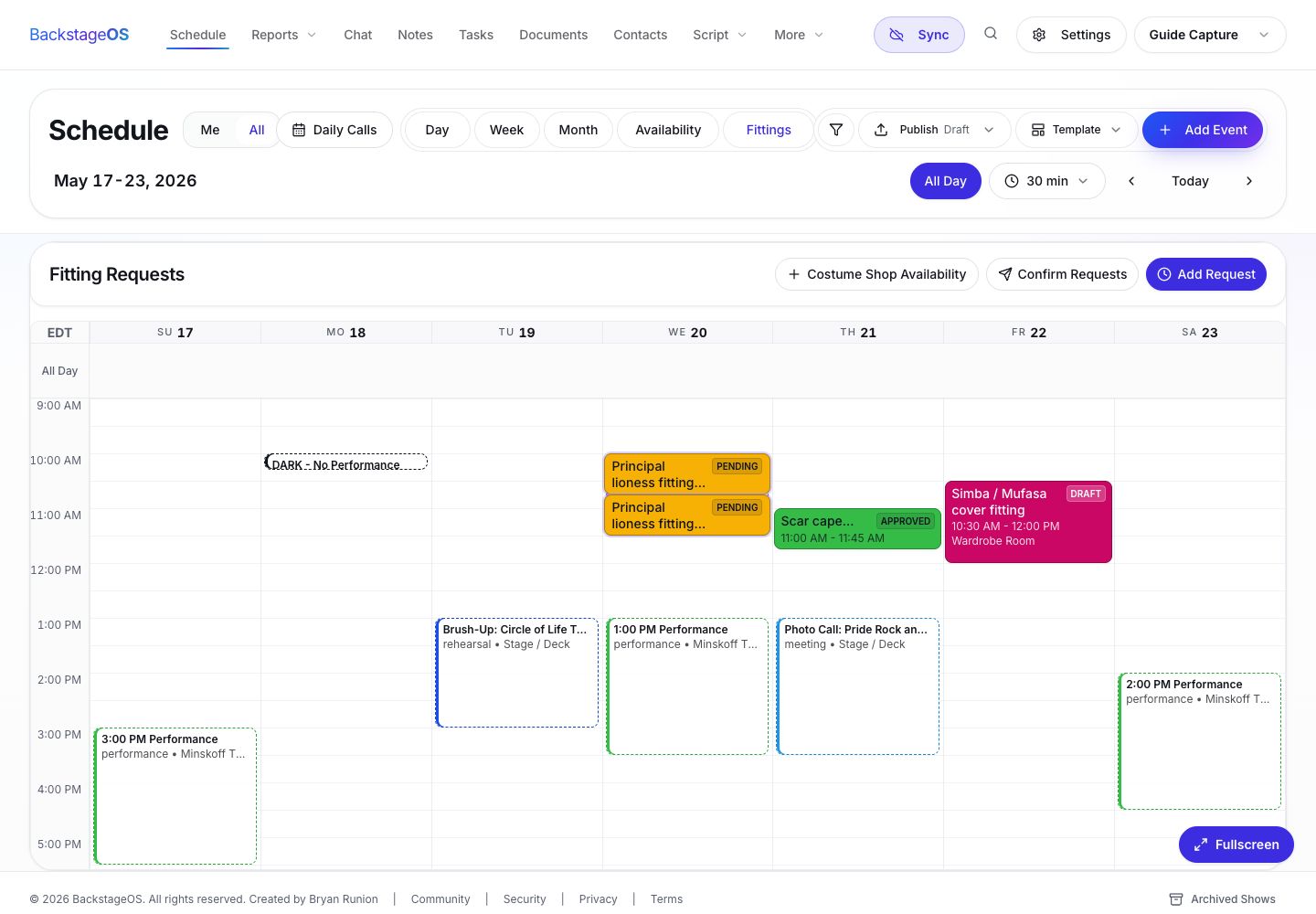
Fitting requests sit beside the schedule so you can see pending wardrobe work in the same context as rehearsal blocks, room use, and existing calls.
Step-by-step: create and send the request
Start in the Schedule area and open the fitting request workflow. Create the request with enough detail that the next person can make a decision without asking three follow-up questions.
The best request names are specific. Wig fitting is weaker than Young Simba wig check. Costume notes is weaker than Nala act one costume notes. Specific titles make review faster and make the schedule easier to scan later.
Use the notes field for details wardrobe needs to preserve, such as garment, wig, shoe, or measurement context.
Use a time window when stage management should choose the exact appointment time.
Use separate appointments when each person needs their own fitting slot.
1. Open the Fittings view
Go to Schedule and open the fittings workflow for the current day or week.
2. Create a new fitting request
Choose New Fitting Request and enter the fitting title, type, location, date, start time, end time, and notes.
3. Add people
Choose the performer or group that needs the fitting. If the request may be split by person, include every candidate now.
4. Set timing rules
Decide whether the fitting needs an exact time, any time on the selected date, or a window that can be split into appointments.
5. Save or send
Save as a draft if the department is still building the list. Send when the request is ready for stage-management review.
Review it before it becomes the schedule
The review step is where the fitting stops being a department wish and starts becoming part of the day. Open the request, confirm the details, check the window, pick the people, and decide whether the request should be added as one event or split into separate fittings.
This is also the moment to protect the rest of the schedule. If a request lands inside a meal break, conflicts with another call, or needs a room that is already in use, adjust it before publishing the schedule.
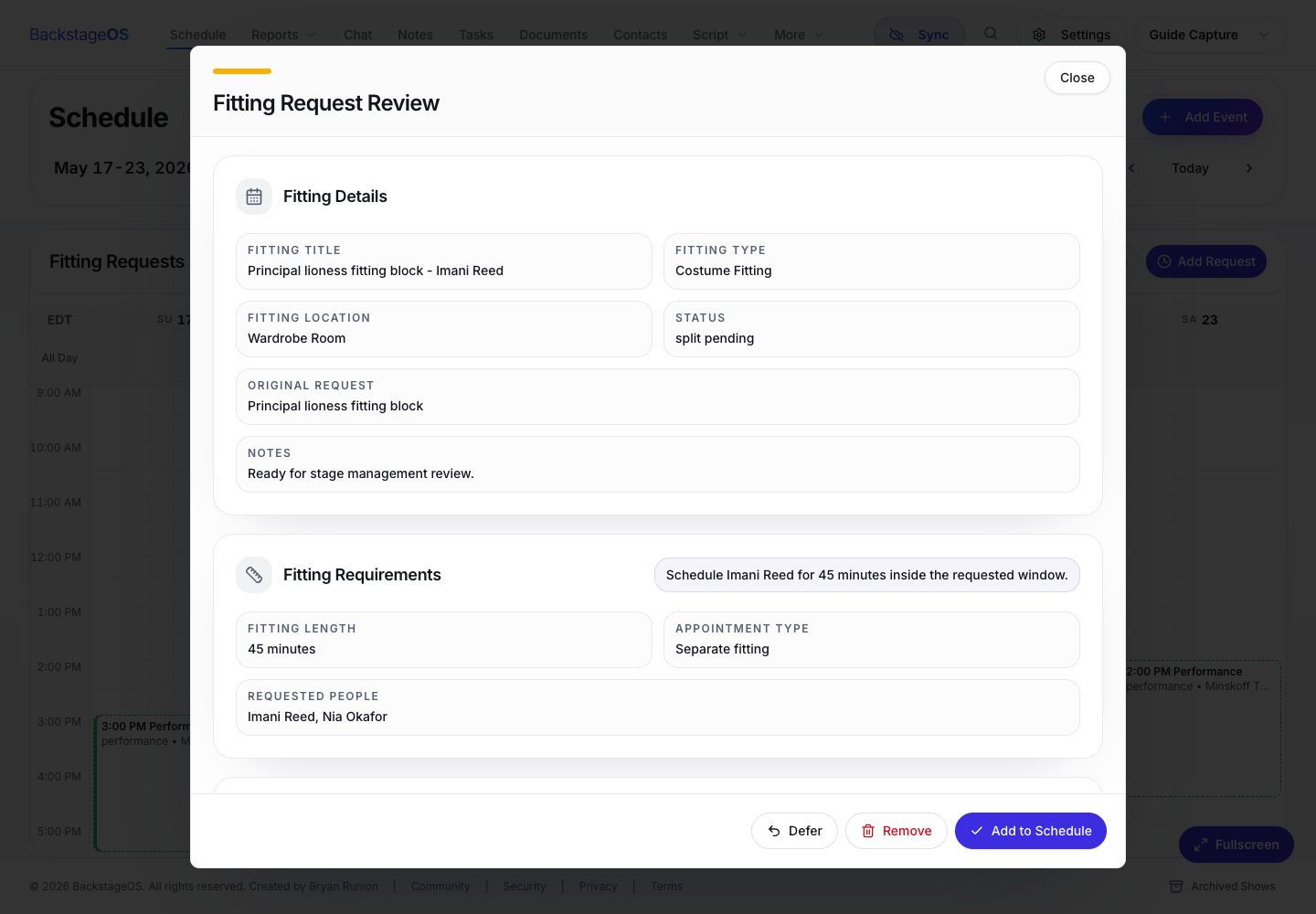
The review dialog lets stage management defer, remove, split, or add the fitting to the schedule after checking timing and assignments.
1. Open the pending request
Select the pending fitting from the grid or request list.
2. Confirm the request details
Check title, fitting type, location, status, requested timing, and any notes.
3. Choose the scheduling rule
Keep one event when the fitting is shared. Choose split fittings when each person needs an individual appointment.
4. Set the exact time
Use the requested window as a guide, then set the actual appointment date, start time, end time, and duration.
5. Add it to the schedule
Select Add to Schedule or Split Fittings. The request becomes schedule work with the right status trail behind it.
What to confirm after scheduling
After the request is scheduled, scan the week again. Does the performer have enough time to travel from rehearsal to wardrobe? Is the room actually available? Does wardrobe know whether this fitting is confirmed, deferred, split, or removed?
BackstageOS helps because the request does not disappear after the event is created. The schedule card and workflow status remain tied to the same piece of work, which gives everyone a better chance of understanding what happened.
Confirm the fitting appears on the correct date and time.
Confirm the correct person or people are attached.
Confirm the location is readable to the person receiving the schedule.
Confirm any deferred or removed requests are not still being treated as active.
If the schedule is already published, use the schedule publish workflow to communicate the change.
Request the fitting
Capture the fitting title, type, location, people, timing preference, and duration before it enters the schedule.
Review the request
Stage management can approve, defer, remove, adjust, or split fitting work before it becomes live schedule data.
Place and confirm
Once a fitting is added to the schedule, it can be communicated with the same schedule workflow as the rest of the show.