Send a schedule update without making a second source of truth.
When a published week changes, update the schedule first, review the difference, choose the right audience, and send the update from the same workflow people already trust.
Schedule changes
Recipient choice
Personal links
Version context
When a schedule update deserves its own send
Not every edit needs a new email. A corrected typo, a clearer room name, or a formatting cleanup may only need to live in the schedule. A changed call time, a new fitting, a moved rehearsal, a canceled meeting, or a room switch people will act on deserves a deliberate update.
The standard is simple: if someone might make the wrong plan because of the change, send the update from BackstageOS after the schedule itself is corrected.
Start with the corrected schedule. The update should come from the same schedule state the company will open later.
Send an update for call-time changes, new calls, canceled calls, room changes, and fitting changes.
Avoid sending a new email for tiny cleanup that does not change anyone's plan.
If you are unsure, ask whether a person could reasonably show up at the wrong place or time.
Step-by-step: send the update
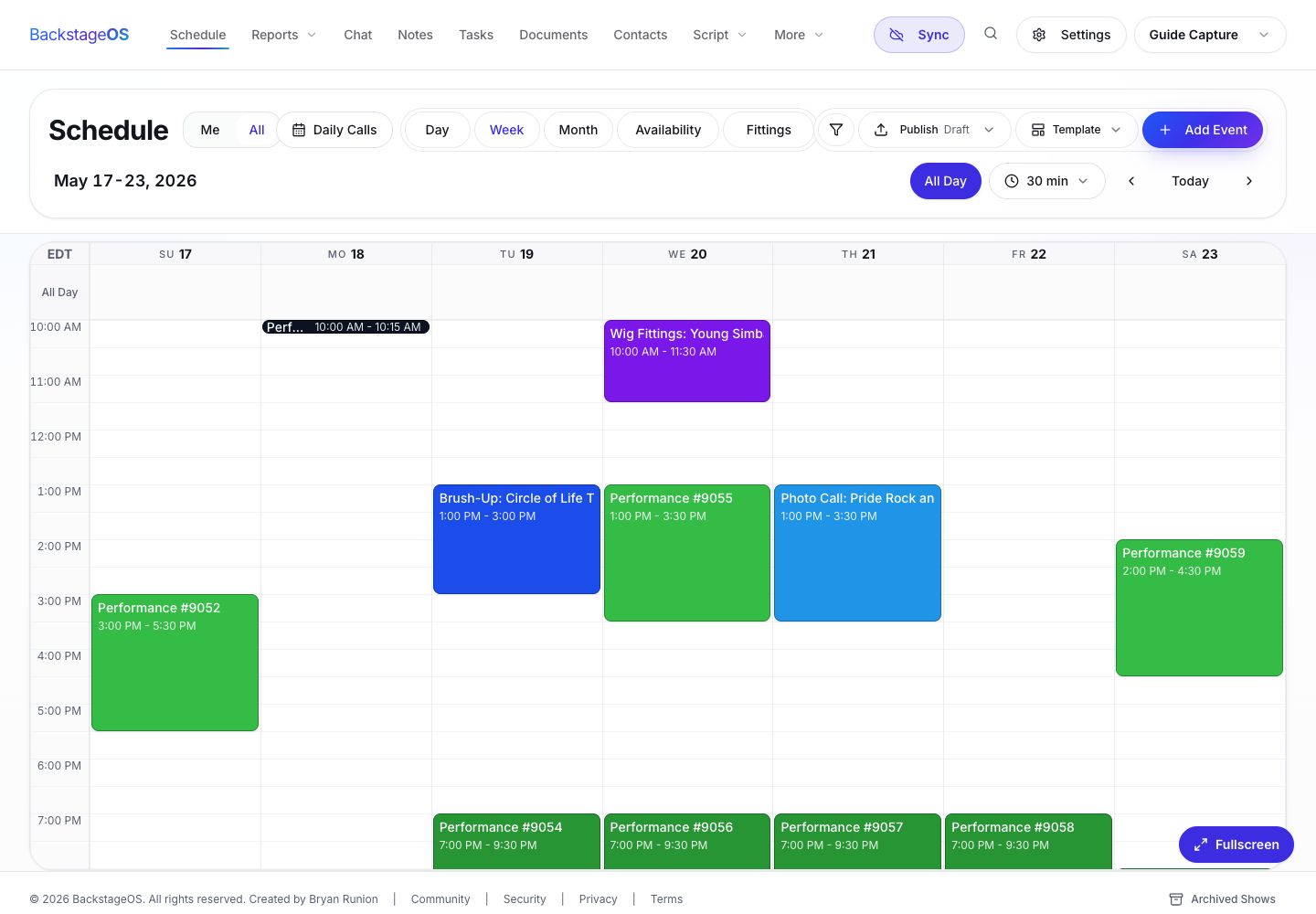
Open the affected week, make the schedule correction, and scan the day around the change. The update should explain the change, but the schedule should be the place where the change actually lives.
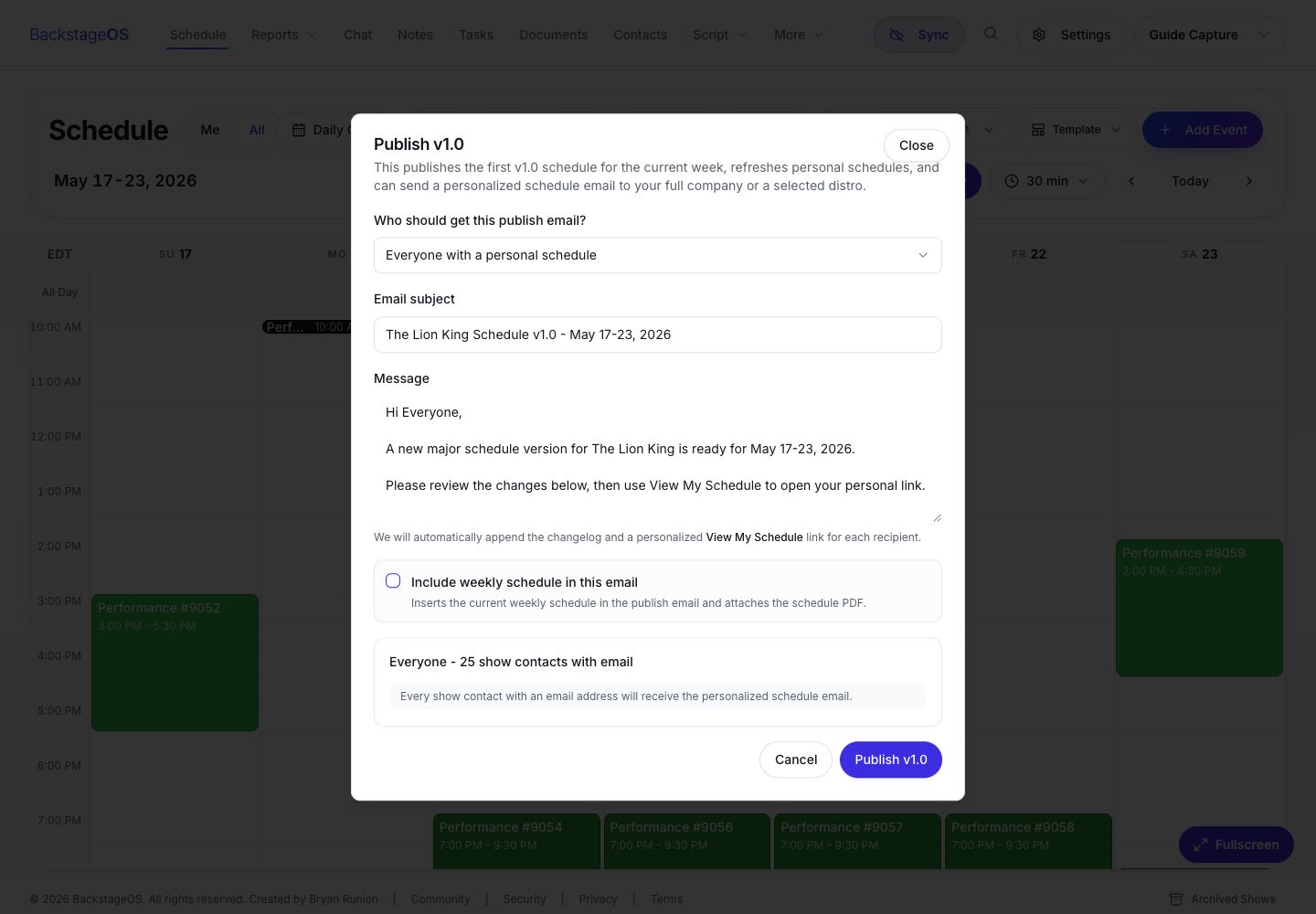
Then open the publish or email workflow and choose the audience that needs to act on the correction. This is where BackstageOS is useful: the send can carry the schedule link, recipient context, and current schedule state together.
1. Open the affected week
Go to the schedule week that changed and confirm you are editing the right date range.
2. Make the correction
Update the event time, location, participants, fitting, note, or cancellation before drafting the message.
3. Review adjacent calls
Check the calls before and after the change so you do not create a travel, meal, room, or staffing conflict.
4. Choose the update audience
Use everyone with a personal schedule for broad changes, or use a narrower distribution list when only part of the company is affected.
5. Send from BackstageOS
Write a short note, include the schedule when helpful, and send the update so the link points back to the current schedule.
Write the update note like a stage manager
The update note should be clear enough for someone reading it between rehearsal and dinner. It does not need to be beautiful. It needs to name the change, the date, the affected people or department, and the action required.
Do not paste the whole schedule into the message. That turns the email into a rival schedule. Use the note to orient people, then point them back to the schedule link.
Use the message field to call out the correction, then let the schedule link and attachment carry the details.
Start with the date and changed item.
Name who is affected when the change is not company-wide.
Say whether people should use the updated personal schedule link.
Keep the subject line specific enough that it can be found later.
A simple update message structure
A good schedule update can usually be written in four moves: what changed, when it changed, who it affects, and where the current schedule lives.
That structure keeps the message calm and prevents the update from becoming a long explanation of how the change happened.
1. Name the correction
Example: Wednesday's wardrobe fitting for Nala has moved to 10:30 AM.
2. Name the affected group
Example: This affects wardrobe, stage management, and the performers listed on the fitting.
3. Point to the schedule
Example: Please use your updated personal schedule link for the current call time and location.
4. Give the question route
Example: Send conflicts or questions to stage management before the end of rehearsal.
After the update sends
After the update leaves, do a quick verification pass. Make sure the changed event still looks right, the intended audience was selected, and the schedule link opens to the corrected information.
This is the part that keeps a correction from creating more confusion. BackstageOS helps because the schedule, publish workflow, message, and recipient logic live beside each other instead of across separate documents and inboxes.
Spot-check the changed event on the weekly schedule.
Confirm the recipient audience matched the impact of the change.
Open one personal schedule when the change affects individual calls.
Preserve any context the next stage manager may need during handoff.
Fix the schedule first
Make the correction in the schedule before writing the message so the link, PDF, and recipient view all point to the same source.
Choose the audience
Send the update to everyone affected, not everyone who enjoys being copied. Use the full company only when the change is truly company-wide.
Keep the note useful
Name what changed, where to look, and what action people need to take. Let the schedule carry the actual details.