Submit pay levels without rebuilding the record later.
Assign pay codes from attendance context, submit a versioned pay-level snapshot, review history, track usage, and share the report with the people who need it.
Pay codes
Submitted snapshots
Usage tracking
Share reports
What pay levels are doing in BackstageOS
Pay levels sit at the intersection of attendance, payroll context, and production memory. The question is not only who was in. The question is what pay code was true for that person on that date, who submitted it, and what record can be trusted later.
BackstageOS handles that by separating live assignment from submitted history. You can work the Pay Levels tab as the day changes, then submit a snapshot when the record is ready to preserve.
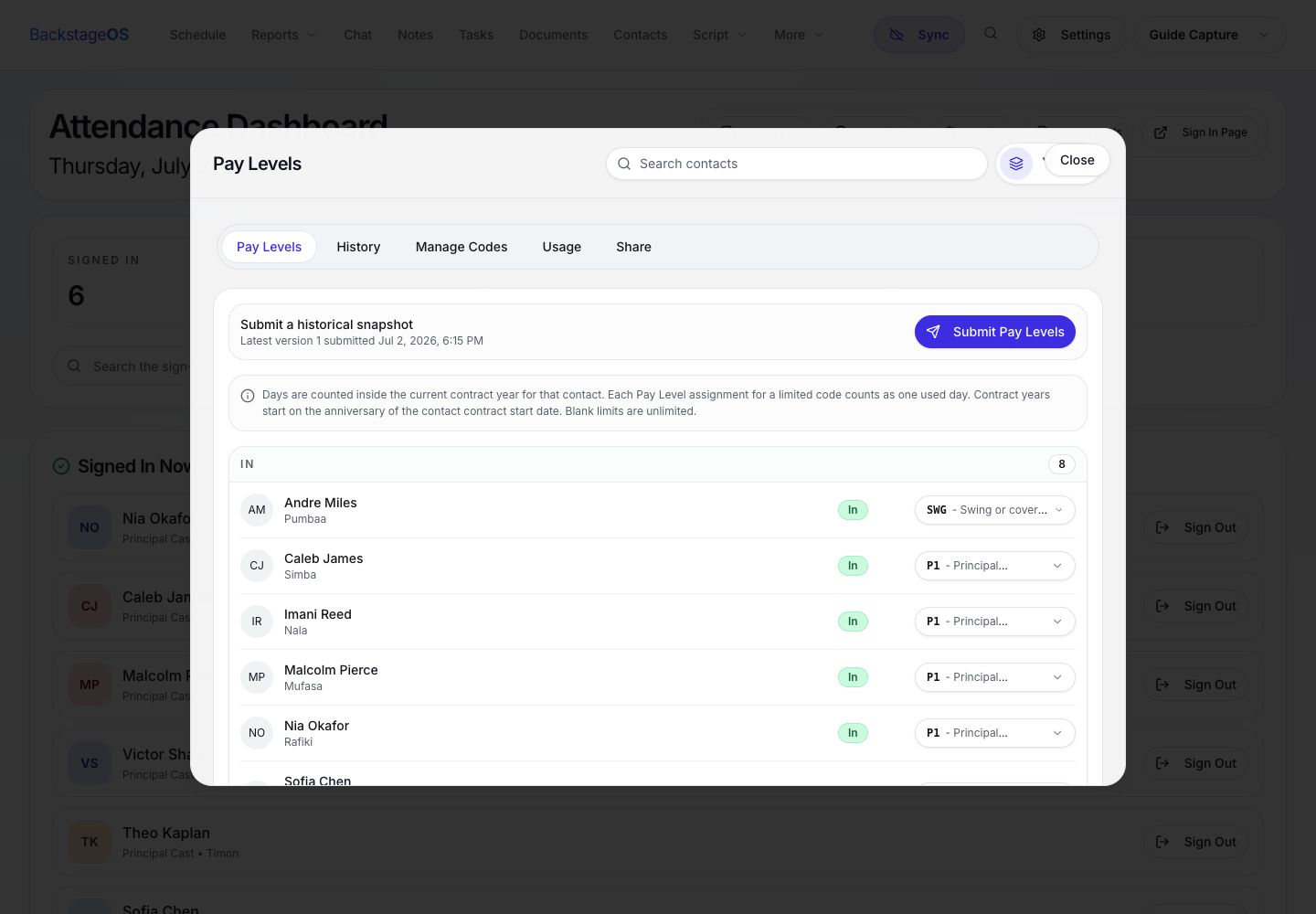
The Pay Levels tab shows enabled contacts, current sign-in status, selected pay code, and the action that submits the day as a versioned snapshot.
Step-by-step: assign and submit
Open Pay Levels from the attendance or digital sign-in workflow for the board date you are working on. The rows should show the contacts enabled for pay levels, their sign-in status, and the selected pay code.
If a person is missing, fix the contact setup first. A payroll workflow built on missing contacts will create cleanup work later.
Do not submit before obvious attendance corrections are resolved.
Use the Manage Codes tab if a needed code does not exist yet.
If you submit too early, submit a later corrected version rather than trying to explain the day from memory.
1. Open the correct date
Make sure the board date is the date you intend to submit. Pay-level records are tied to the selected date.
2. Confirm enabled contacts
Only contacts enabled for pay levels appear in the list. Update the contact if someone should be included.
3. Check sign-in status
Review who is in, out, late, or otherwise marked before choosing or confirming pay codes.
4. Assign pay codes
Use the pay-code selector for each person. Keep labels short and readable, such as PL-A, CH, ENS, or SWG.
5. Submit Pay Levels
When the list is ready, select Submit Pay Levels. BackstageOS saves a versioned snapshot for that date.
Manage codes before the day gets messy
The Manage Codes tab is where pay-code labels and names should be made clear before they are used in a submission. Short labels are useful, but only if the full name is clear enough for someone outside stage management to understand.
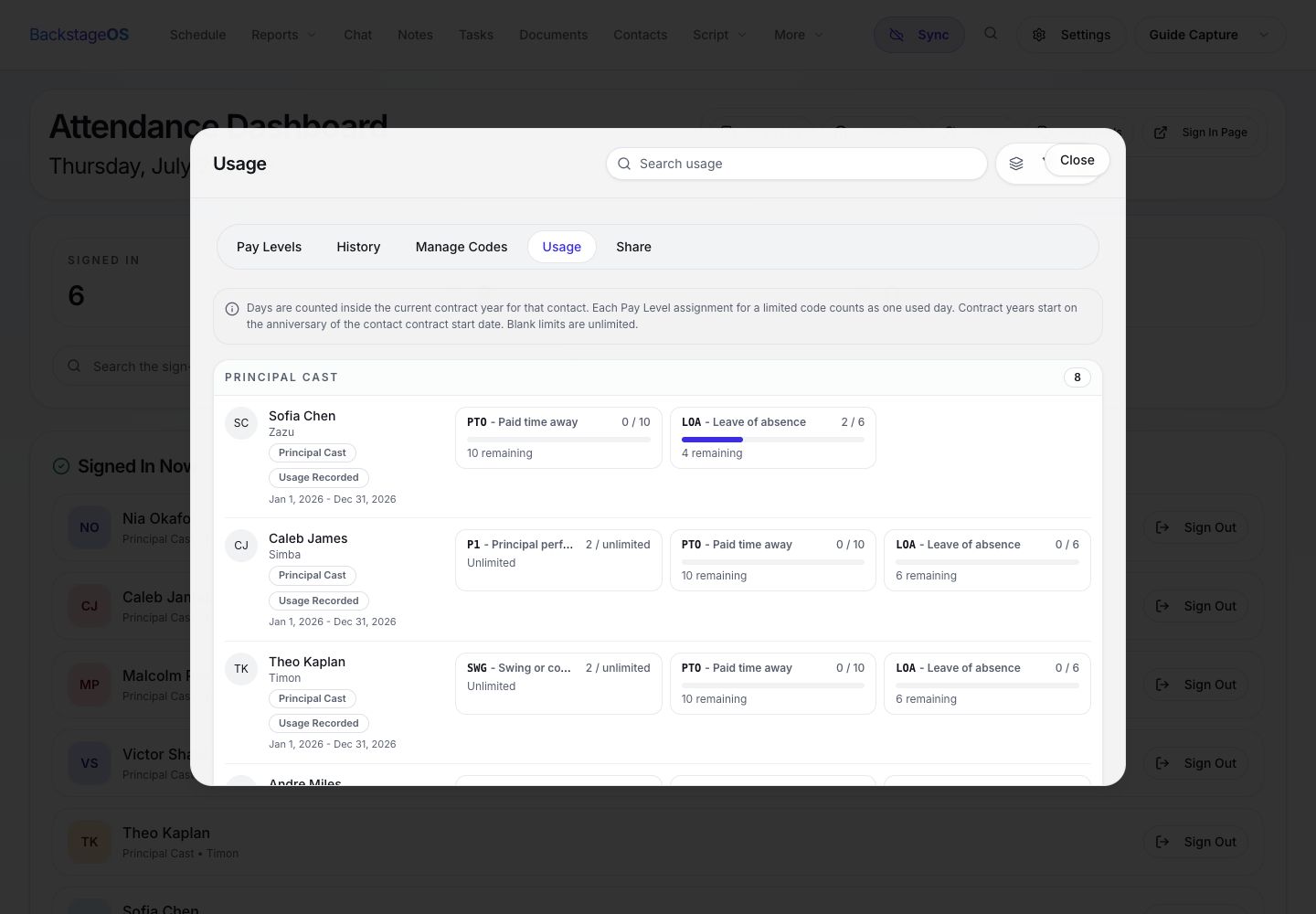
If a code has an annual day limit, record it there. That lets BackstageOS calculate usage over time instead of leaving someone to maintain a separate tally.
1. Open Manage Codes
Create or edit the pay codes your show uses.
2. Keep labels tight
Use labels that fit inside a schedule or report, then use the full name for clarity.
3. Add annual limits when they matter
If a code is limited by days, add the limit so Usage can show remaining or over-limit status.
4. Return to Pay Levels
Assign the cleaned-up codes before submitting the day's snapshot.
Use History, Usage, and Share after submission
Submission is the record, but it is not the end of the workflow. History lets you see what was submitted and when. Usage helps you monitor limits across the contract year. Share gives you a way to send a pay-level report without rebuilding it in a separate document.
This is where BackstageOS is doing quiet but important work. It keeps the submitted code, the contact, the status, the date, and the version together.
After submission, use History to review versions, Usage to monitor limits, and Share to send a report from the same pay-level workflow.
History answers: what did we submit for this date?
Usage answers: how many days has this person used against the relevant code?
Share answers: how do we send the record without rebuilding it somewhere else?
A pay-level checklist before payroll sees it
The best pay-level workflow is boring in the best way. The contact list is complete, codes are readable, the date is correct, the snapshot is submitted, and the report can be shared without a panic pass.
BackstageOS exists for exactly this kind of production memory. It gives the day a versioned record so the stage manager does not have to become the only place the truth lives.
Correct board date selected.
All pay-level contacts enabled and visible.
Attendance status checked before assigning codes.
Pay-code labels and names are readable.
Snapshot submitted after the list is reviewed.
History and Usage checked if the report has payroll consequences.
Assign pay codes
Use the Pay Levels tab to pair each enabled contact with the right pay code for the selected board date.
Submit a snapshot
Submission creates a versioned record so the day can be reviewed later without guessing what changed.
Track and share
Use History, Usage, and Share to review submitted records, monitor limits, and send payroll-ready context.