Create a schedule template that saves the next week.
Build a reusable weekly schedule pattern in BackstageOS so tech week, preview week, brush-up calls, fittings, meals, and recurring holds do not have to be rebuilt by hand.
Weekly templates
Event templates
Template Builder
Schedule reuse
When to make a schedule template
Make a template when the structure repeats but the details still change. Tech week is the obvious example, but the same logic applies to preview weekends, brush-up rehearsals, student production weeks, tour load-in days, company meeting blocks, and regular wardrobe or music calls.
The goal is not to lock the production into one rigid pattern. The goal is to give the stage manager a clean starting point. BackstageOS keeps the template separate from the live schedule, so the pattern can stay reusable while the actual week can still respond to the room.
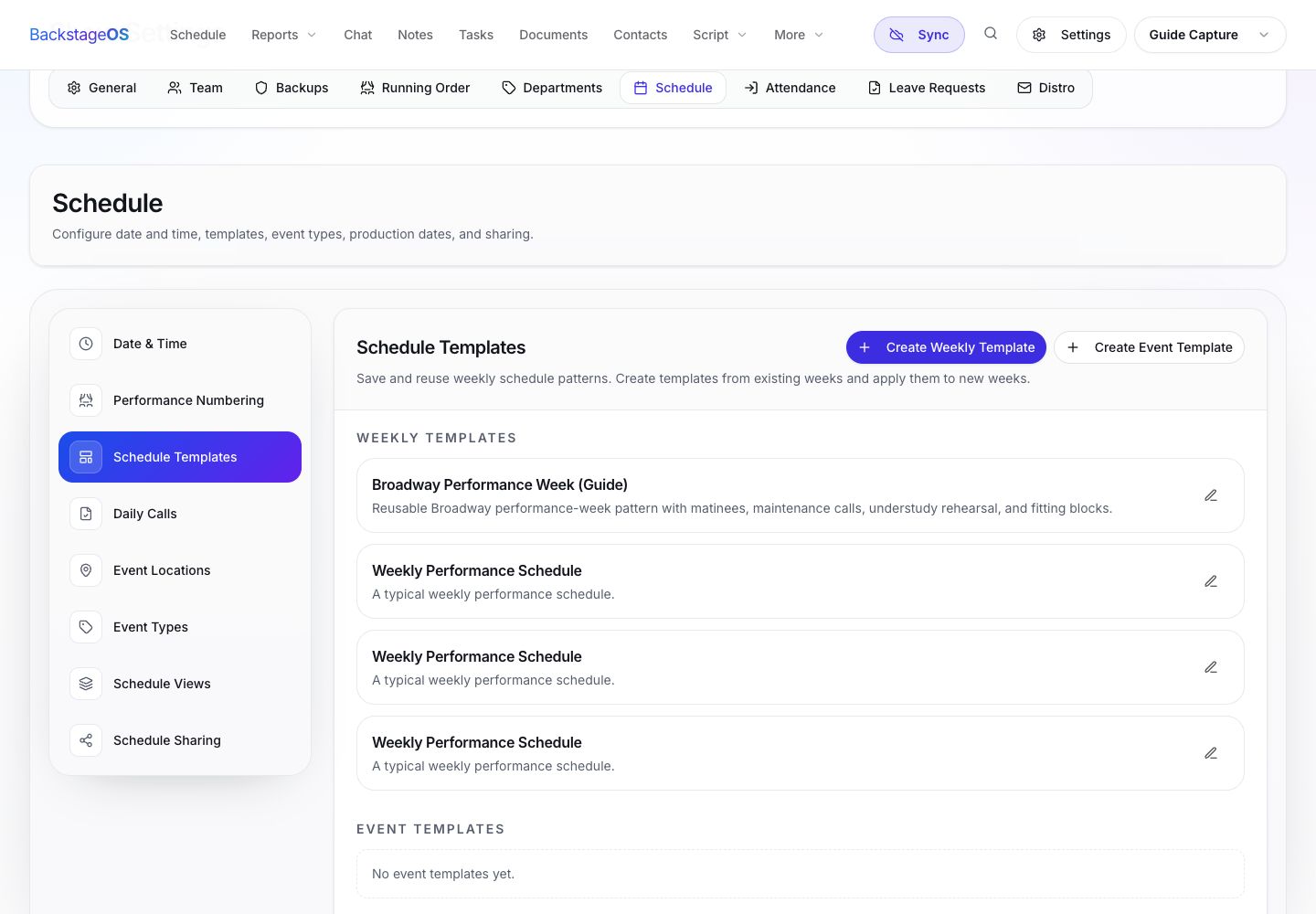
The Schedule Templates screen lives in the show settings area. Use it to create weekly templates and single-event templates before applying them to the live schedule.
Use a weekly template for a full pattern across multiple days.
Use an event template for a recurring single block, such as a fitting, music call, company meeting, or production note session.
Use live schedule events only when the event belongs to one actual date and does not need to be reused.
Step-by-step: create the template
Open your show, go to Schedule Templates, and choose Create Weekly Template. Give the template a name that describes the production moment, not just the calendar shape. Tech Week Standard is better than Week Template. Preview Weekend is better than Weekend.
Write a short description while the purpose is still obvious. Future you may open this template at the end of a long day, and a plain description can prevent the wrong pattern from being applied.
1. Open Schedule Templates
Go to the show settings area and open Schedule Templates. This is where reusable weekly templates and event templates are managed.
2. Create a weekly template
Select Create Weekly Template, enter the template name, add a practical description, and save it.
3. Open the Template Builder
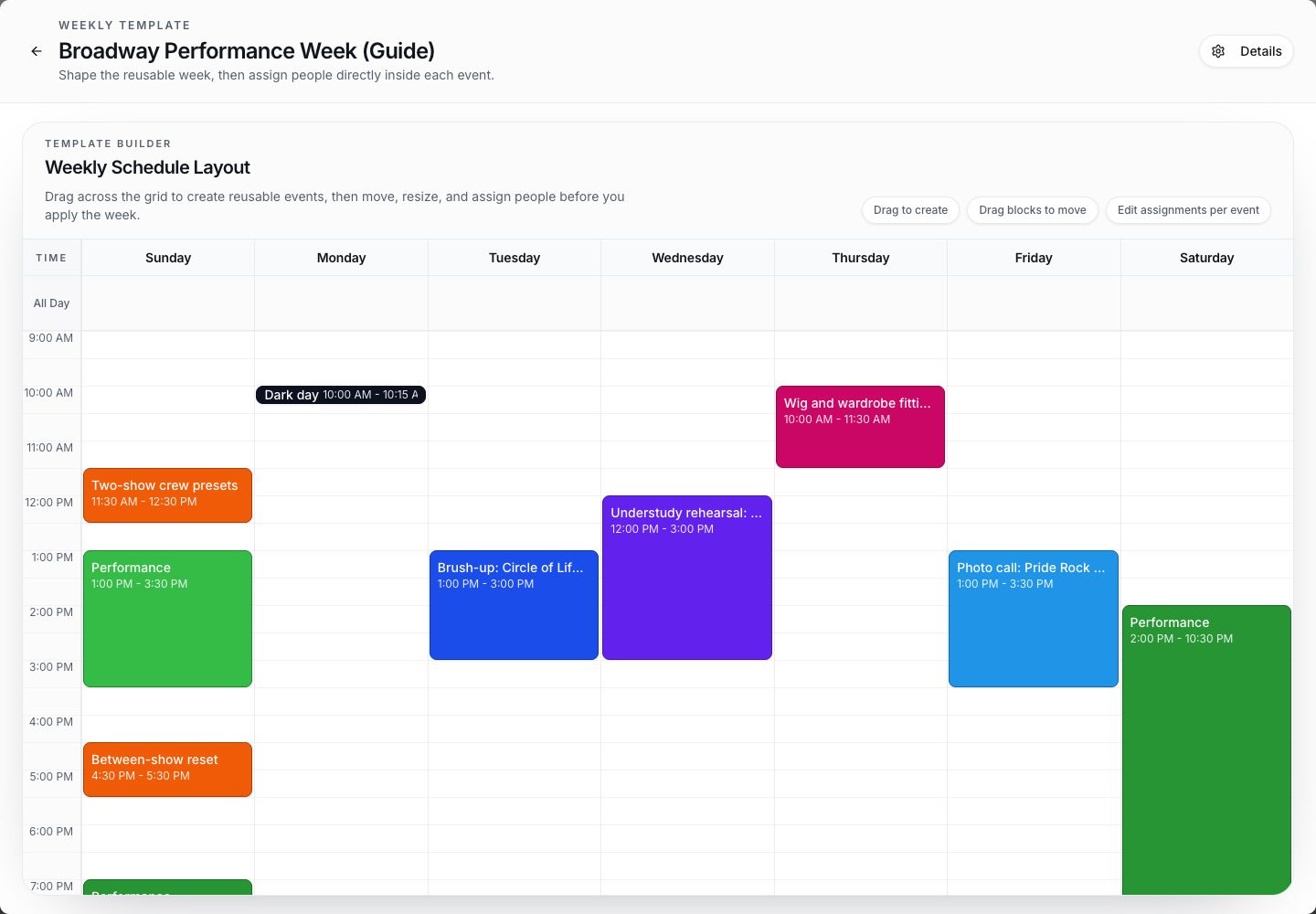
After the template is created, open it so you can add schedule blocks directly to the weekly pattern.
4. Add the recurring blocks
Add calls, meetings, fittings, meals, holds, spacing, tech notes, or rehearsal blocks that usually appear in this kind of week.
5. Save only what should repeat
Keep production-specific exceptions out of the template. Add those later on the actual schedule week.
Build the week inside Template Builder
The Template Builder should feel like a rehearsal schedule before dates are attached. Add the blocks that create the shape of the week: start and end times, event type, location, notes, department flags, and participants when those are stable enough to repeat.
This is where discipline matters. If a note is only true for one Tuesday, it belongs on that Tuesday after the template is applied. If it explains how this type of week usually works, it belongs in the template.
The Template Builder lets you shape the week before it becomes a dated schedule. Add only the blocks that should survive reuse.
Use event types consistently so filtering and downstream paperwork stay readable.
Add locations when the location is part of the pattern. Leave it blank when the room changes every week.
Put notes on the card only when the note will help someone scanning the schedule.
Keep meal breaks and holds explicit. They are easy to assume and painful to lose.
Apply it without losing judgment
A template should reduce the amount of rebuilding, not replace judgment. After applying the template to a real week, scan it like a draft schedule. Check leave requests, availability, room conflicts, fittings, department dependencies, and any rehearsal priorities that have changed since the pattern was made.
This is where BackstageOS scheduling becomes more than a calendar. A template can create the shape, but the live schedule still needs the context of the show: who is called, who is unavailable, which room is available, and what needs to be published.
1. Apply the template to the target week
Choose the week that needs the pattern and apply the template there.
2. Review every generated block
Confirm time, location, event type, notes, departments, and participants before treating the week as ready.
3. Add week-specific exceptions
Add the director meeting, replacement fitting, holiday schedule, rehearsal-room change, or special note to the live week only.
4. Publish when the week can stand on its own
Move into schedule review or publication only after the generated pattern has been checked against current production reality.
A simple QA pass before you publish
Before the template-generated week leaves your desk, read it like a cast member, a designer, and a department head. A schedule can be technically complete and still fail the people who need to use it.
BackstageOS helps because the template, live schedule, review links, personal schedules, and publish workflow are connected. You are not copying a pattern into one tool, exporting it to another, and then trying to remember what changed in a third place.
Do all calls have a clear start time, end time, location, and event type?
Are fittings separated from rehearsals clearly enough that wardrobe can plan around them?
Are meal breaks, holds, and company meetings visible instead of implied?
Are any old notes from the template misleading for the current week?
Can a person with a personal schedule understand what applies to them?
Set the pattern once
Create reusable weeks and single-event presets so routine schedule structure does not have to be typed again.
Build from real production use
Name templates around the moment they serve: tech week, preview weekend, music brush-up, or fitting block.
Keep edits local
Apply the pattern to a week, then adjust the actual week without damaging the reusable template underneath.